GPT Image 2.5 Virtual Staging: Prompts for Listing Photos
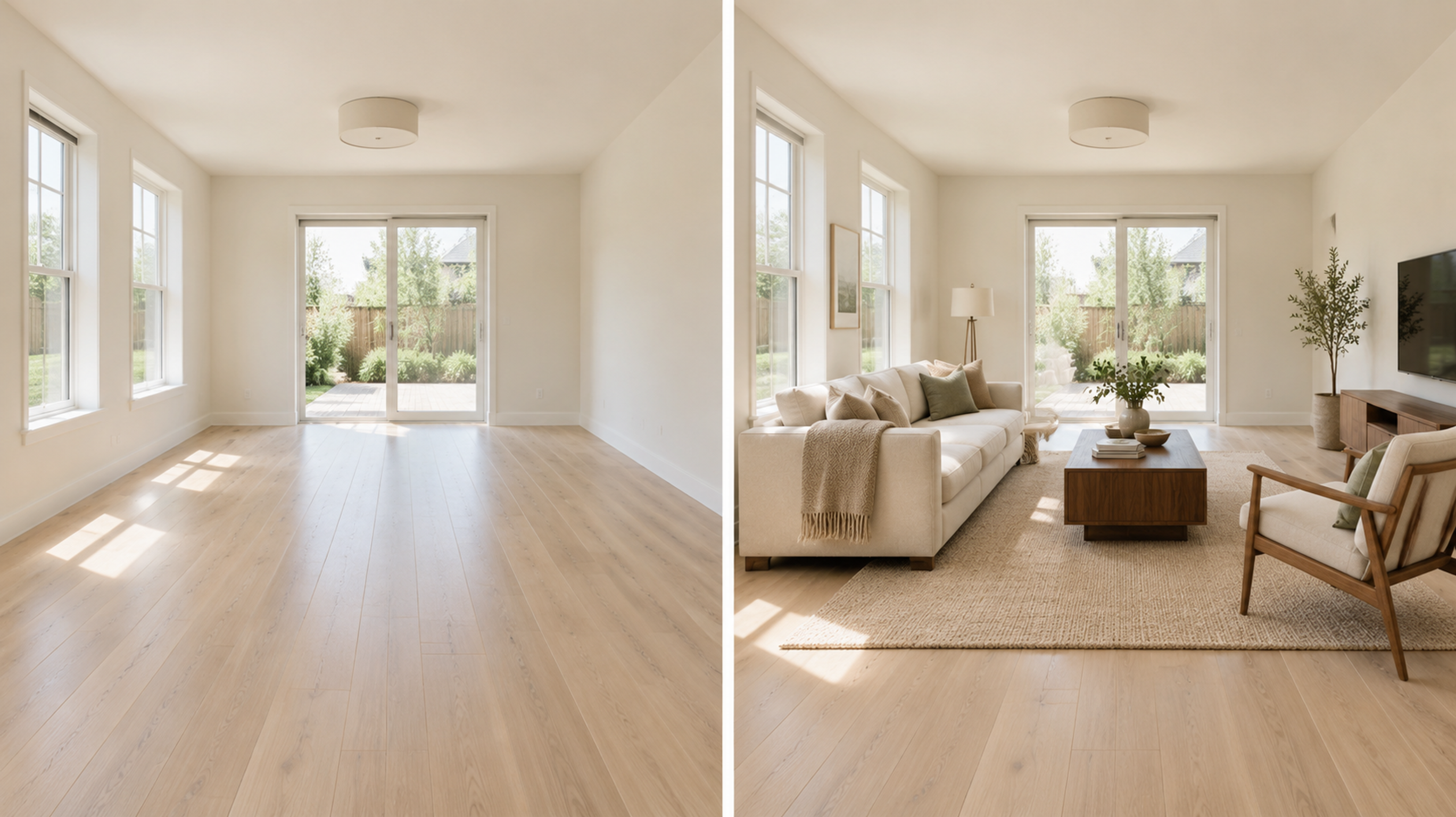
To virtually stage a room with GPT Image 2.5, use the empty-room photo as an editing reference and specify both the furniture to add and the property features to preserve. In our synthetic demonstration, the furnished edit added the requested seating, table and rug, but also introduced extra decor and concealed some baseboards. Treat the result as a candidate to inspect against the original; this run does not establish exact architectural preservation.
Can GPT Image 2.5 furnish a room without changing it?
It furnished this demonstration room, but the result missed part of the preservation brief. The practical test is whether an attractive arrangement still represents the visible property accurately enough for your listing.
First, the source: a synthetic empty room generated with GPT Image 2.5 from a prompt only, with no start image. It is a demonstration image, not a photograph of an actual property.
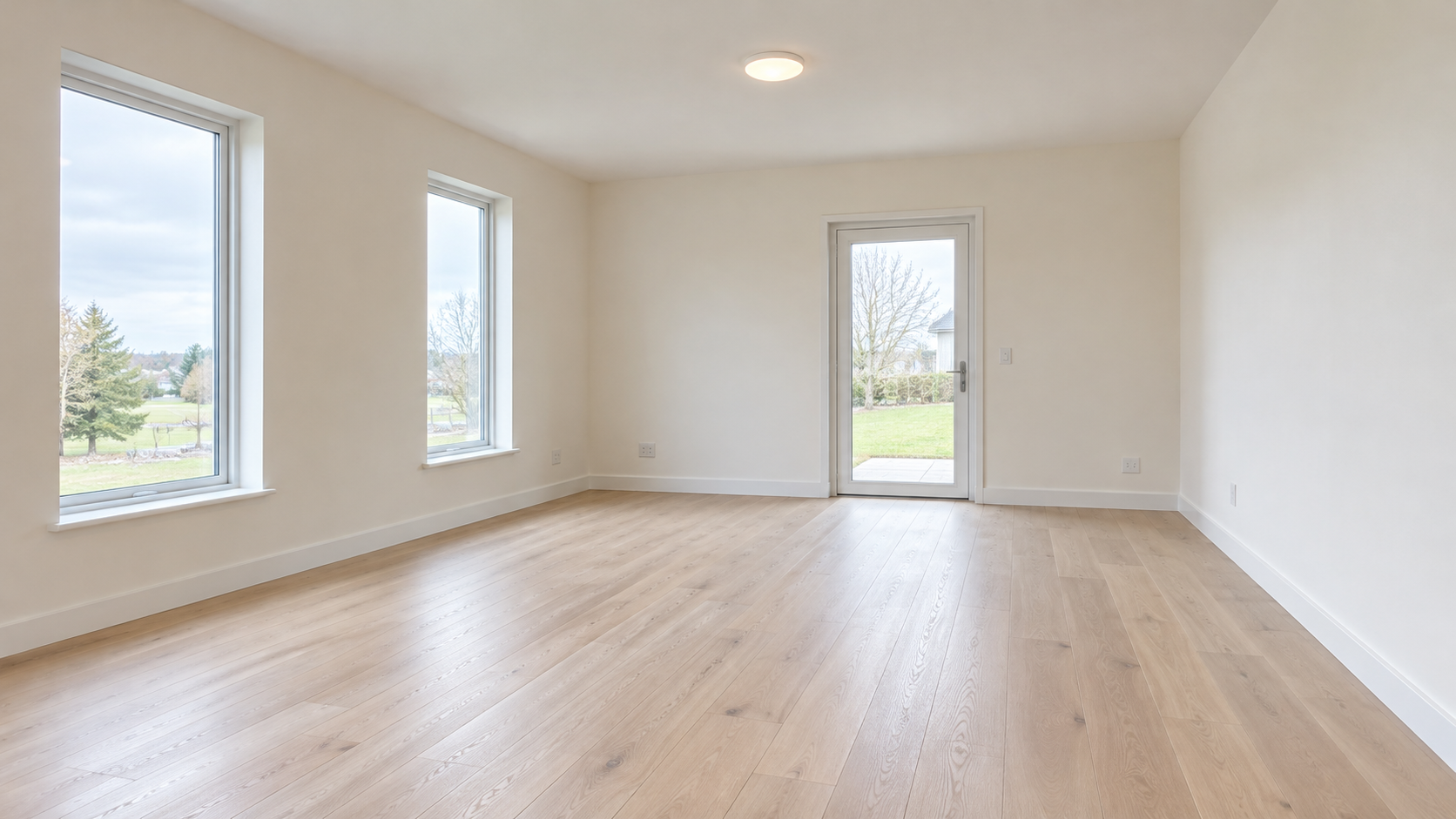
Create a realistic real estate photograph of an empty contemporary living room, viewed from one corner at standing eye level. Two tall rectangular windows sit on the left wall. One closed glass patio door sits on the rear wall, slightly right of center. Pale oak floorboards run toward the rear wall. Include warm white walls, simple white baseboards and one small flush ceiling light. Soft overcast daylight, neutral exposure, straight vertical lines, natural proportions. No furniture, rugs, plants, artwork, people, text or watermarks.
Next, the virtually staged result, made with GPT Image 2.5 using that empty-room image as the start image. Both generations used a 16:9 aspect ratio, 1K resolution and background auto, and each cost 7 credits.
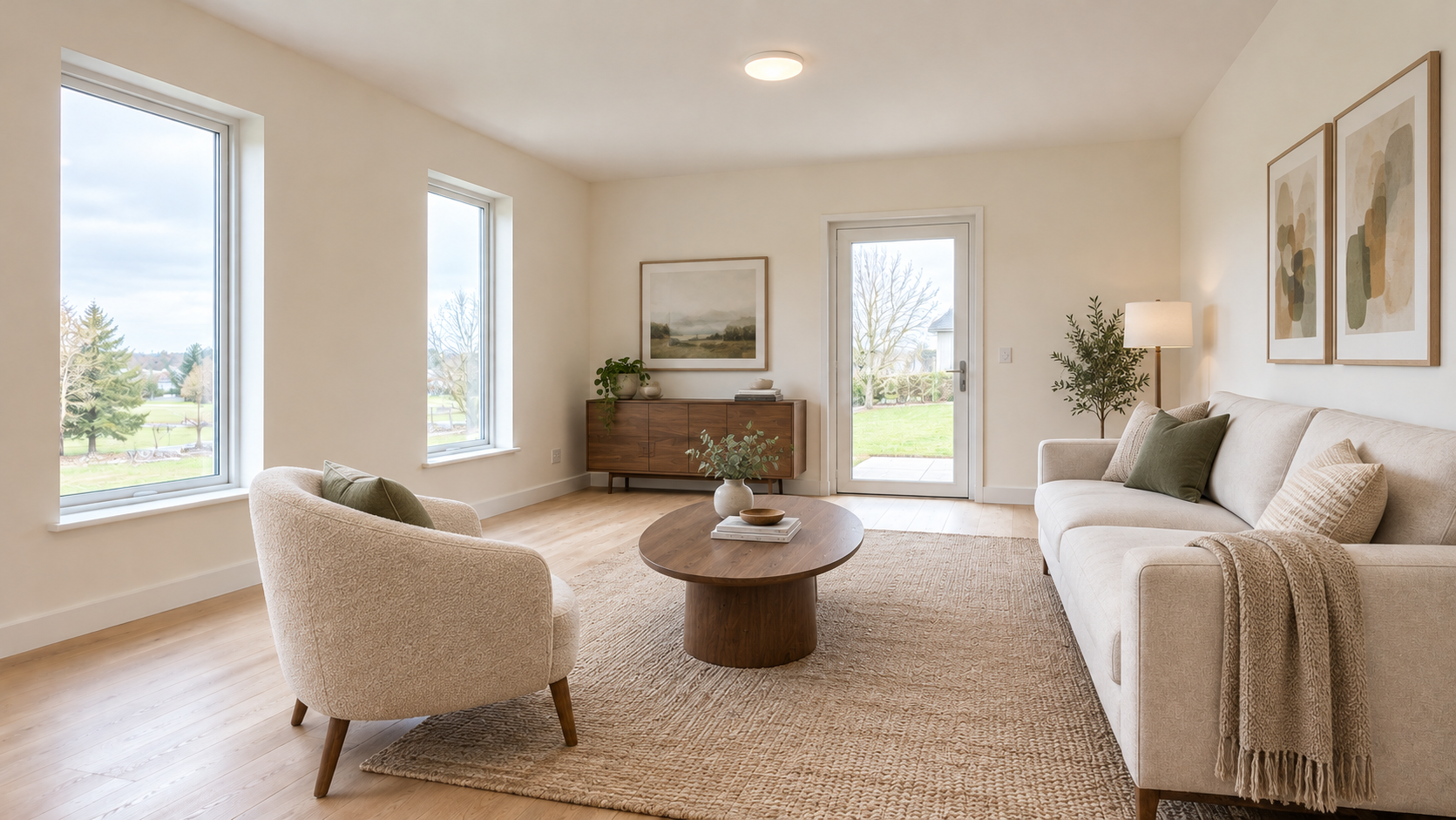
Virtually stage this exact living room for a property listing. Preserve the camera position, perspective, room dimensions, walls, both windows, patio door, ceiling light, baseboards, floorboards and daylight. Add a cream three-seat sofa against the right wall, a low oval walnut coffee table, a pale woven rug and one compact armchair near the left foreground. Keep clear walking space to the patio door. Use realistic furniture scale, contact shadows and restrained contemporary styling. Add no people, text or watermarks. Do not alter or conceal architectural features.
In our run, the edit placed a cream sofa along the right wall, an oval walnut-toned coffee table and pale rug in the center, and a compact armchair toward the left foreground. Furniture scale looked consistent, contact shadows were present, and a walking route remained open toward the patio door.
It also added a sideboard, artwork, plants, cushions, books, a throw and a floor lamp. The sofa and sideboard concealed sections of baseboard despite the instruction to conceal no architectural features. Both windows, the patio door and ceiling light remained visible, but their visibility alone does not verify unchanged geometry or camera perspective.
Start with a room photo whose layout is easy to check
For a real listing, use a photo you have permission to edit, with visible floor edges, windows and doorways. Keep an untouched copy so every candidate can be compared with the same source.
The source prompt and settings document how we made this demonstration. To try the staging workflow on a real listing, use your own empty-room photo as the editing reference.
The synthetic source gives us several concrete things to inspect: two tall windows on the left wall, one closed glass patio door slightly right of center on the rear wall, pale oak floorboards running toward that wall, and one small illuminated flush ceiling light. White baseboards, outlets and a wall switch provide additional checkpoints.
Before editing, write down those fixed features separately from the furniture you want. Include the direction of the floorboards and the positions of openings. A room can retain its general appearance while small changes make it a less faithful representation.
Use this prompt to add furniture and preserve the architecture
Open Kubflow’s Image generator, select GPT Image 2.5 and supply the empty-room photo as the editing reference. For a reproduction of this test, use 16:9, 1K and background auto. For your own listing photo, choose the aspect ratio to match your intended composition.
- Identify the reference as the room to preserve, then describe the intended use: a virtually staged property listing photo.
- List the furniture, its placement and its scale. Keep this separate from the architectural constraints.
- Name the visible features that must stay fixed, including openings, floorboards, fixtures and camera angle.
- Review the exact generation price, run the edit, then compare it with the untouched source.
The exact prompt used for our furnished result appears beneath its image. The following untested template is for your own room. Replace every bracketed field with details from your source photo before running it.
Use: A virtually staged property listing photograph.
Scene: Image 1 is the original empty room; keep its architecture, camera position, framing, perspective and visible room proportions exactly.
Subject: Add [FURNITURE AND PLACEMENT] in a restrained [STYLE] style, scaled to the photographed room.
Key details: Preserve the existing daylight from [SPECIFIC WINDOW OR OPENING AND DIRECTION]. Retain the source camera's [SHOT SIZE AND ANGLE] and exposure. Add realistic contact shadows and leave a clear route to every doorway.
Constraints: Do not alter windows, doors, walls, ceiling fixtures, outlets, baseboards or flooring. Keep [NAMED ARCHITECTURAL CHECKPOINTS] unobstructed. Furniture and the requested rug may cover floor areas; exposed boards must retain their original pattern and direction. Do not add built-ins, lighting fixtures, artwork or plants. Match the source photograph's appearance; for an ordinary phone photo, avoid cinematic lighting and stylized composition. No people, text or watermark.
The extra exclusions address what happened in our run: the model supplied more decoration than requested. They make the next attempt more specific, but they are instructions to test, not a guarantee that every feature will remain unchanged.
For inspection, make matching crops from the original and furnished images. Use the same crop boundaries around the windows, patio door and ceiling light, then inspect an exposed floor section and the wall-floor junctions. Compare full frames as well, since a close crop can miss a shift in perspective.
| Checkpoint | Source observation | Furnished-result observation | Assessment |
|---|---|---|---|
| Windows and door | Two left-wall windows and one rear glass patio door | Both windows and the glazed patio door are visible | Counts and presence agree; exact geometry is unverified |
| Ceiling light | One small illuminated flush light | Round ceiling light remains visible; a floor lamp was also added | Check fixture shape and position against the source |
| Flooring | Oak grain, knots and staggered joints are visible | A rug and furniture cover part of the floor | Compare exposed boards; covered areas cannot be inspected |
| Baseboards | Simple white baseboards are visible | Sofa and sideboard conceal sections | Missed the instruction to conceal no architectural features |
| Furniture and circulation | Empty room | Requested furniture appears with plausible scale and an open route to the door | Useful furnishing result, subject to source comparison |
Change the sofa without redesigning the whole room
For a sofa-color revision, use the furnished result as the start image and request one change: upholstery. Specify that the sofa’s shape, position and shadows should remain fixed, along with the rest of the room.
This demonstration includes only the empty source and the first furnished edit. The revision below is a template to try; there is no generated revision here to assess for unintended changes.
Use: A single-detail revision to a virtually staged property listing photograph.
Scene: Image 1 is the furnished room. Keep its framing, camera angle, perspective and exposure exactly as supplied.
Subject: Change only the sofa upholstery to [COLOR AND FABRIC].
Key details: Preserve the sofa's dimensions, silhouette, seams, cushions, legs, position and contact shadows. Keep the existing window daylight and its direction. Retain the source shot size and angle.
Constraints: Leave the armchair, rug, coffee table, sideboard, decor, floor lamp, ceiling light, windows, patio door, walls, baseboards and visible flooring unchanged. Do not add, remove or move objects. Preserve the ordinary photographic appearance. No other edits, text or watermark.
Compare that revision against both references: the furnished image for unintended furniture changes, and the original for property accuracy. Look specifically at rug edges, chair position, table shape, lamp placement and daylight.
If the furnished version already contains a changed opening, shifted wall or unacceptable obstruction, return to the original room photo. Ask for the corrected furniture arrangement and desired sofa fabric together. Otherwise, a successful upholstery change could leave an earlier problem intact.
What does a virtual staging attempt cost in Kubflow?
The listed price for GPT Image 2.5 is 7 credits for one 1K image. Our synthetic source cost 7 credits, and the furnished edit cost another 7, for 14 credits across the two supplied generations.
Starting with your own room photo skips the source-generation step. Budget separately for staging attempts and revisions, and check the exact price displayed before each generation for your chosen editing configuration.
Generation requires a paid plan; there is no free plan. Kubflow plans start at $19 per month. For this task, the useful budgeting unit is an attempt you have inspected, since an attractive output may still need another edit.
Check the finished image before using it in a listing
Use the checkpoints above to decide whether to keep, revise or reject the candidate. Reject changes to openings, permanent fixtures or room geometry, and reject obstructions that hide details buyers need to see. Keep the original available and label the furnished image as virtually staged.
Questions
Can GPT Image 2.5 preserve room layout during virtual staging?
You can explicitly request preservation, but inspect the result against the original photo. In our synthetic demonstration, windows and the patio door remained visible, while furniture concealed some baseboards; exact architectural preservation was not established.
How do I prompt GPT Image 2.5 for virtual staging?
Identify the room photo as the editing reference, list furniture and placement, then separately name the architecture and camera perspective to preserve. Specify clear walking routes and exclude unwanted decor or fixtures.
Can I change just the sofa color after staging?
Use the furnished image as the reference and request only an upholstery change, with explicit constraints on everything else. The sofa-revision template in this article has not been demonstrated with a generated result.
How much does GPT Image 2.5 image editing cost in Kubflow?
The listed price is 7 credits for one 1K image, and each supplied demonstration image cost 7 credits. Every generation displays its exact price before running; generation requires a paid plan, starting at $19 per month.
Should I label an AI-furnished listing photo?
Clearly identify the image as virtually staged and keep the original photo available. Review the result for changes to the property before using it in a listing.